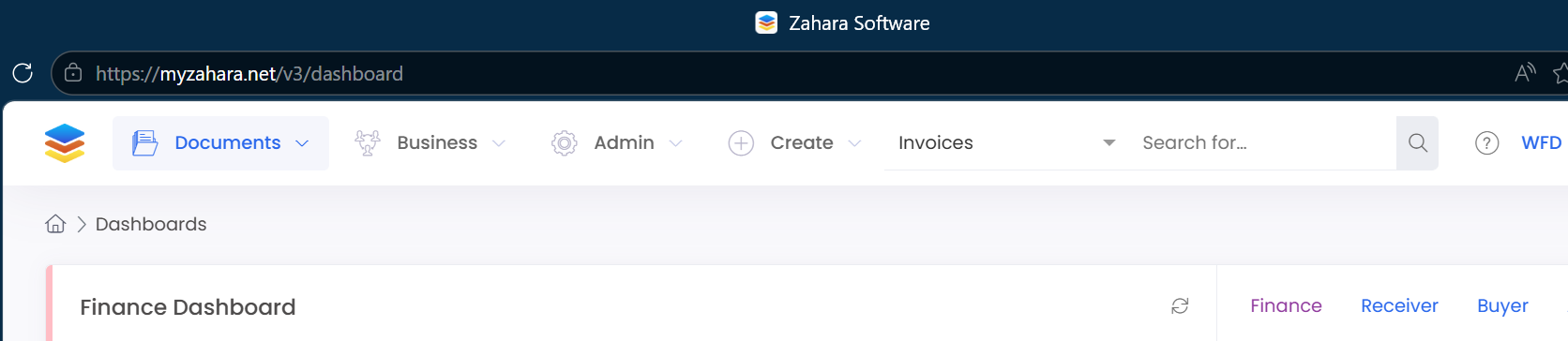
Step 1 : Log in to your Zahara Business.
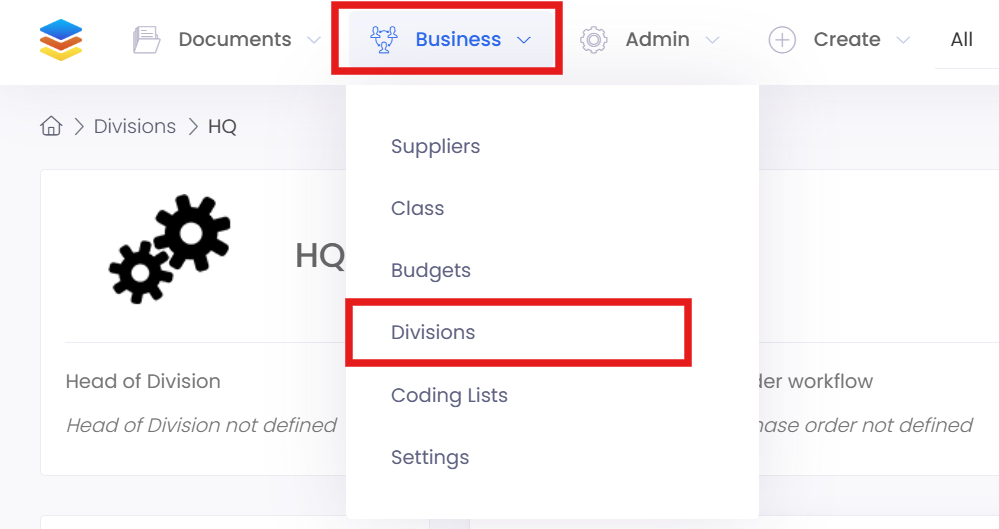
Step 2 : Go to Divisions from Business dropdown
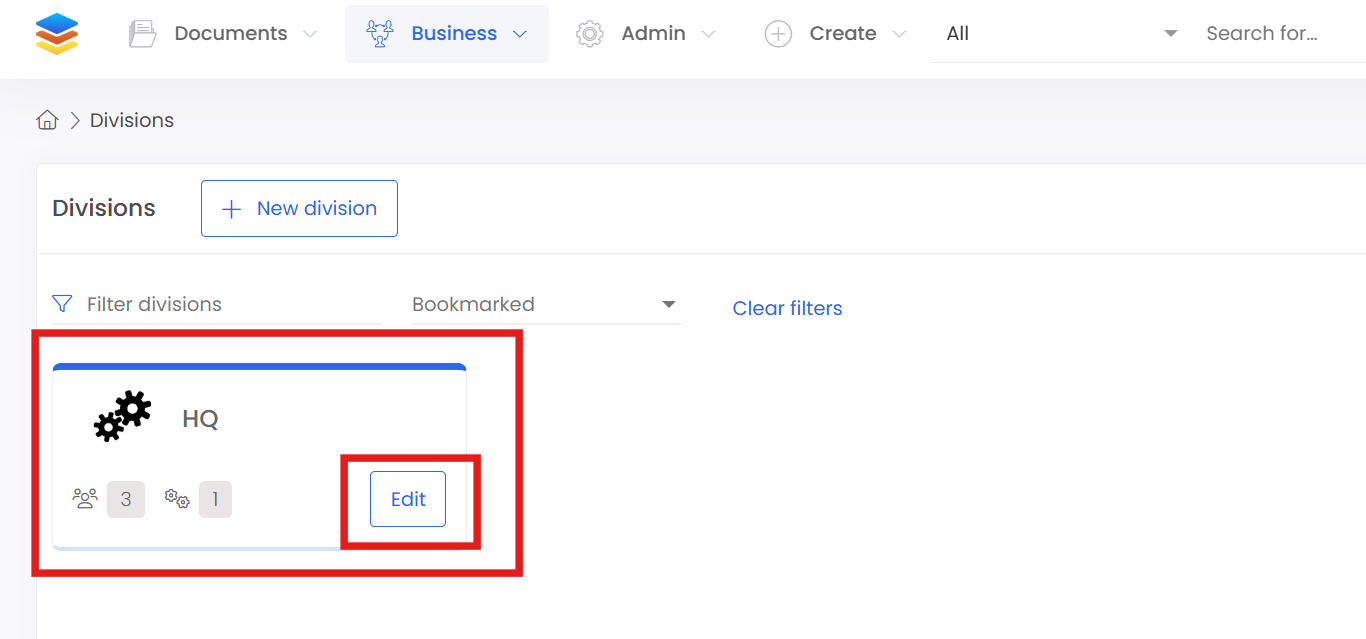
Step 3 : Go to your Division and Edit
Step 4 : Go to your Workflows under your Division
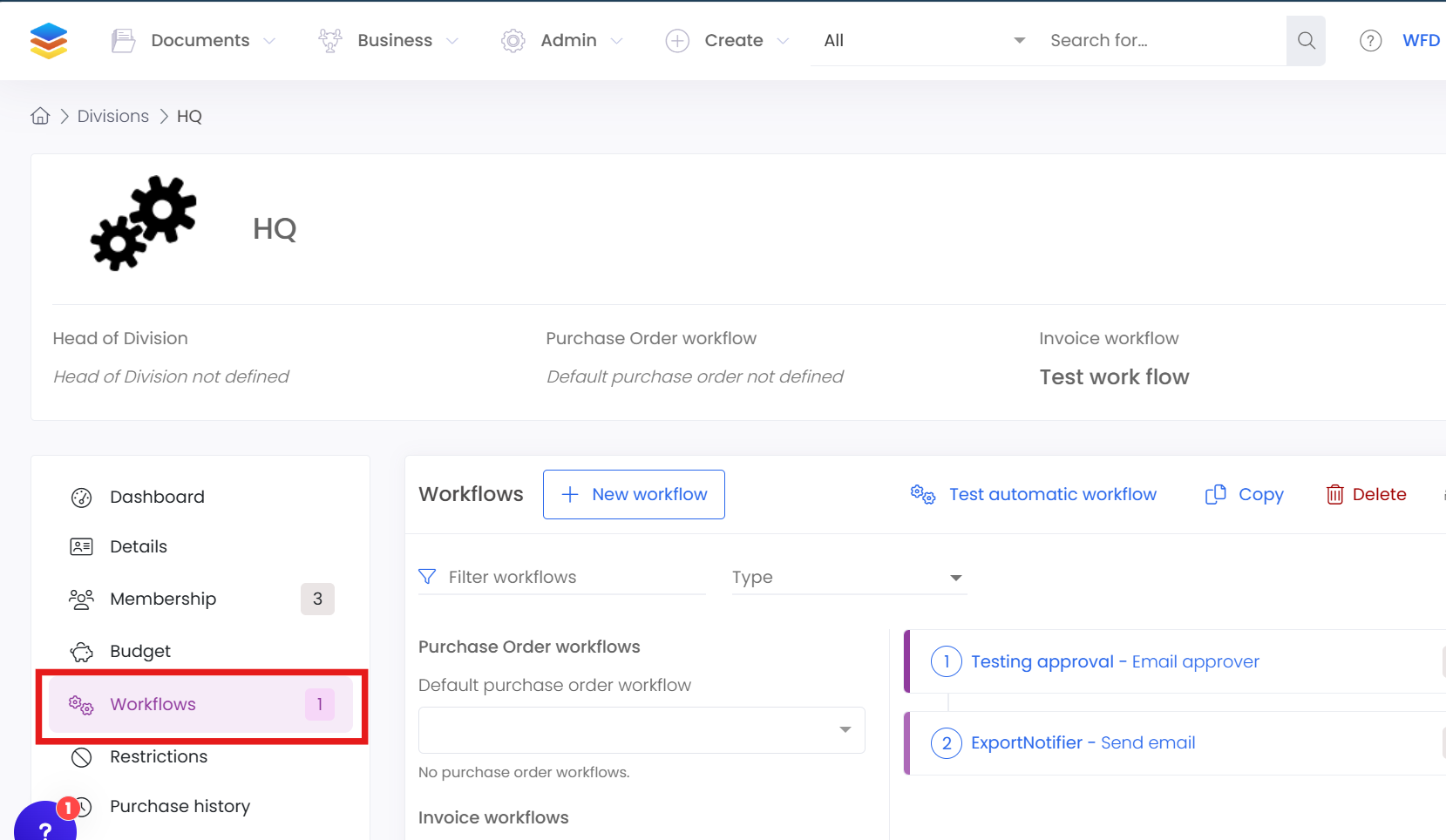
Step 4 : You can create your own workflow from scratch or edit an existing workflow. (Make sure you create an Invoice Approval flow)
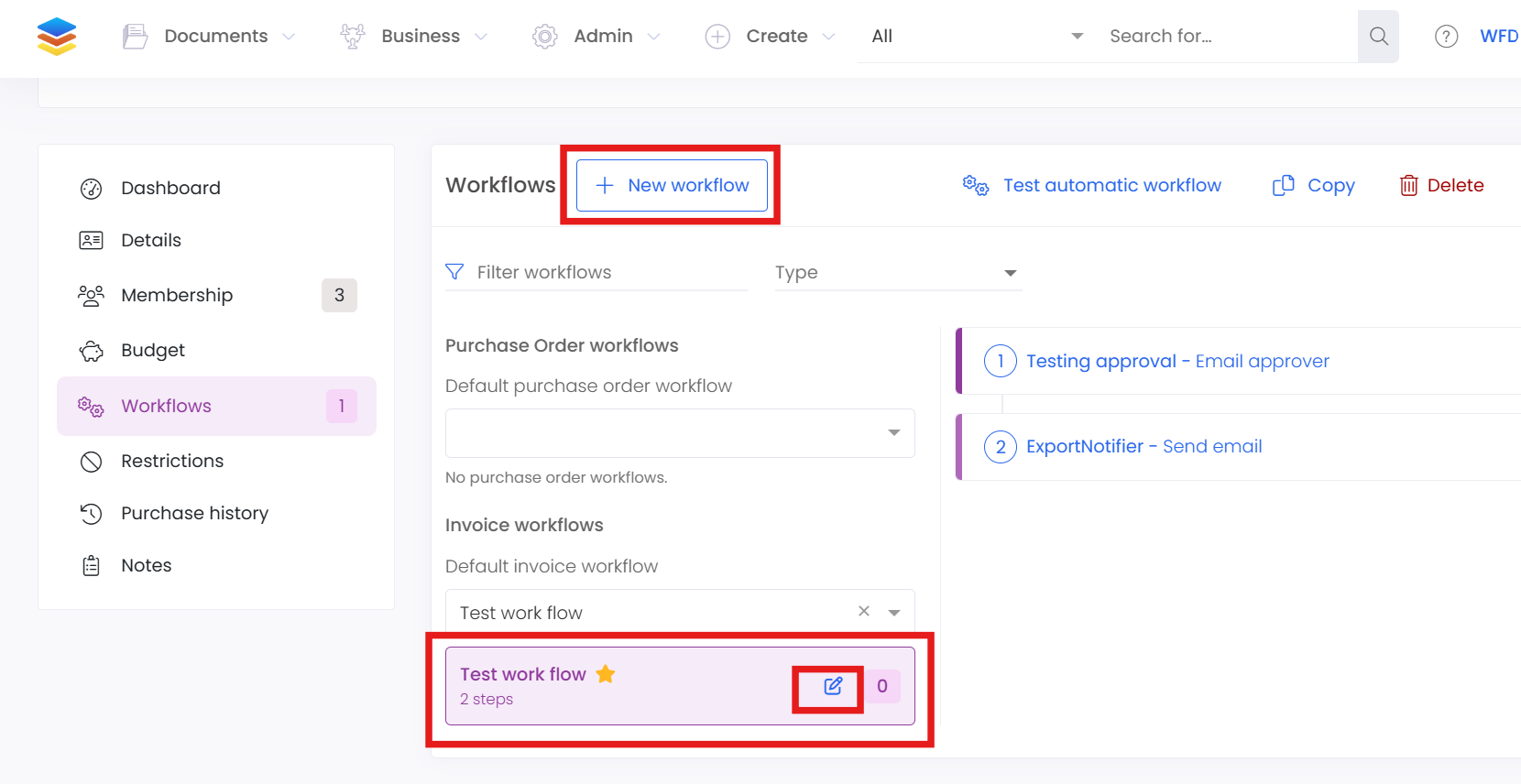
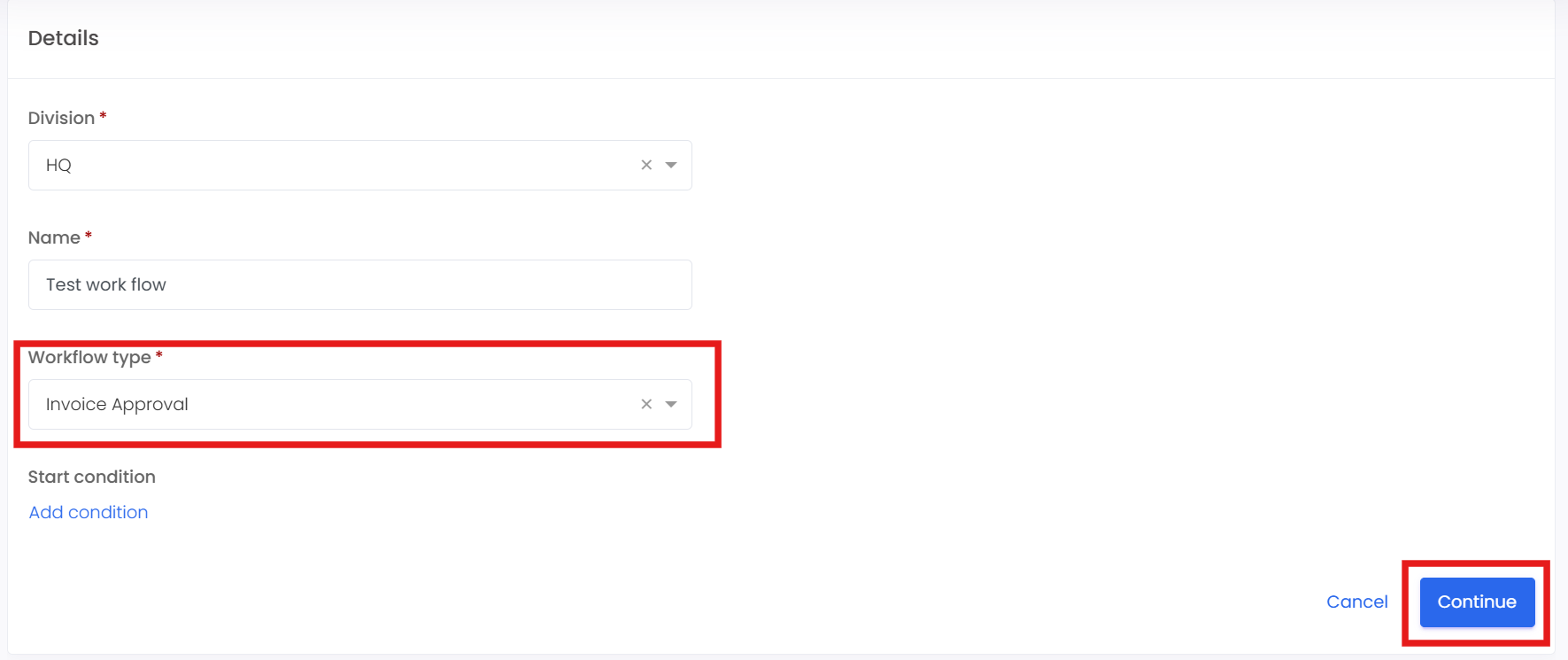
Step 5 : Make sure you are under Workflow Type Invoice Approval.
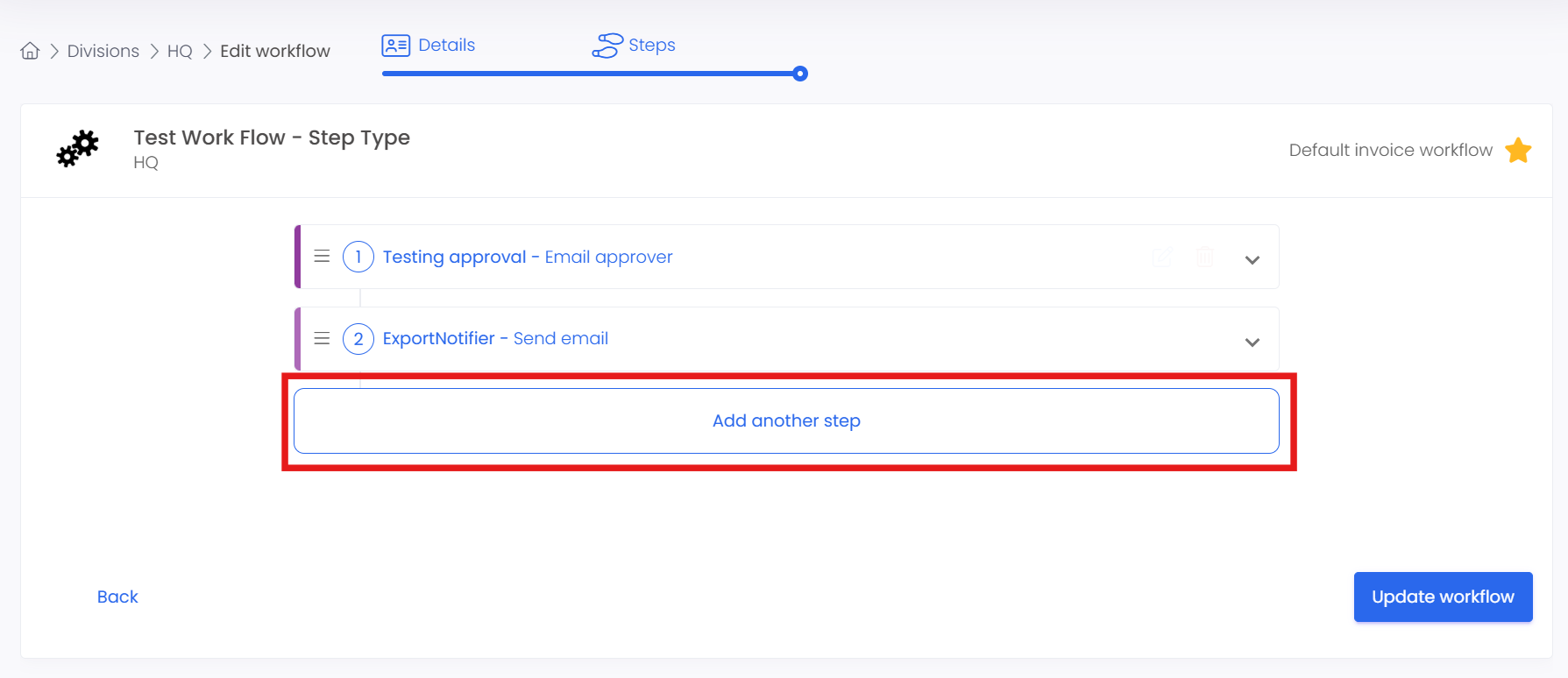
Step 6 : Add another step right after your Approval step.
Step 7 : Name the step ExportNotifier and add the email address given to you by Team WFD.
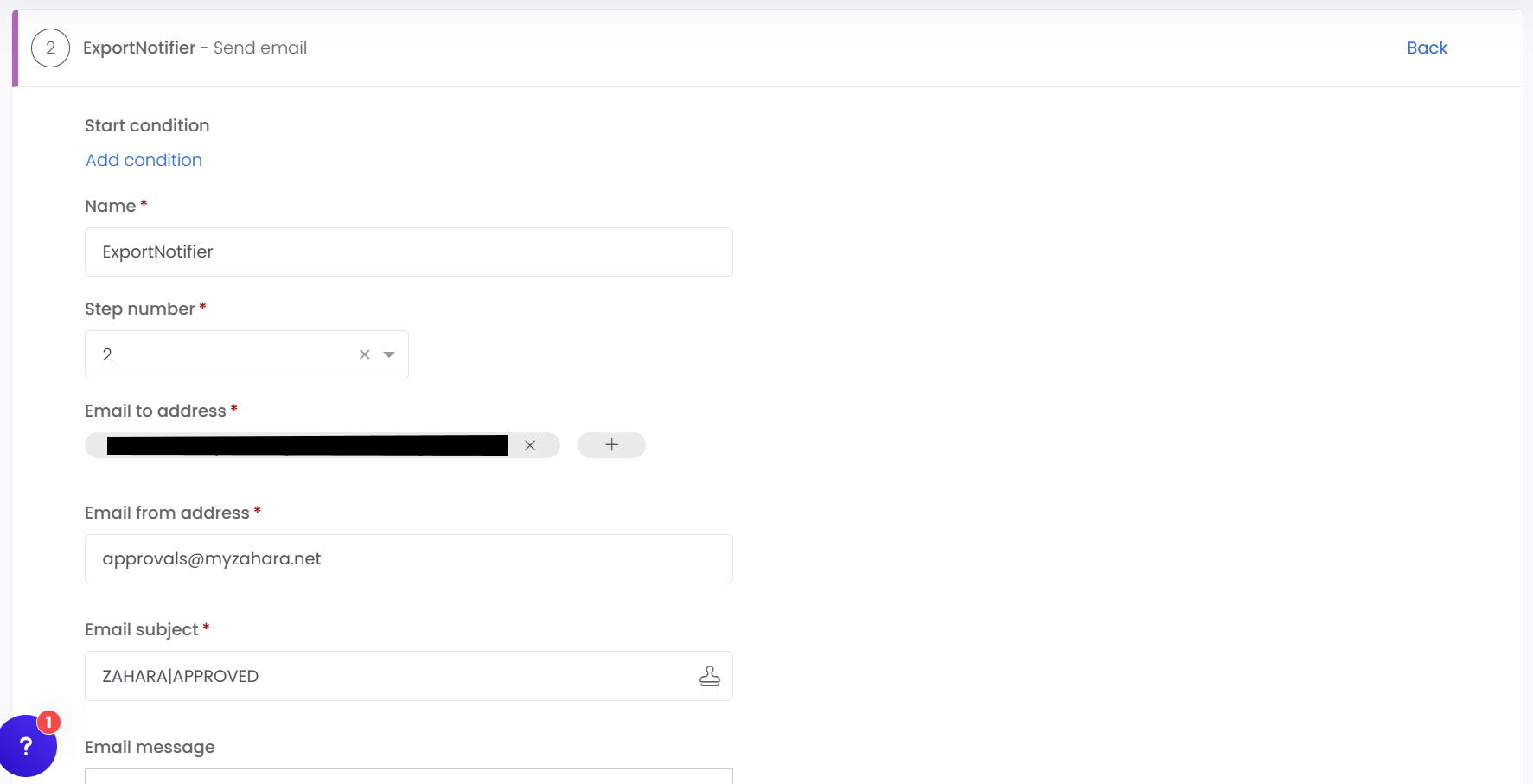
Step 8 : Set up the Subject and Body exactly as mention below
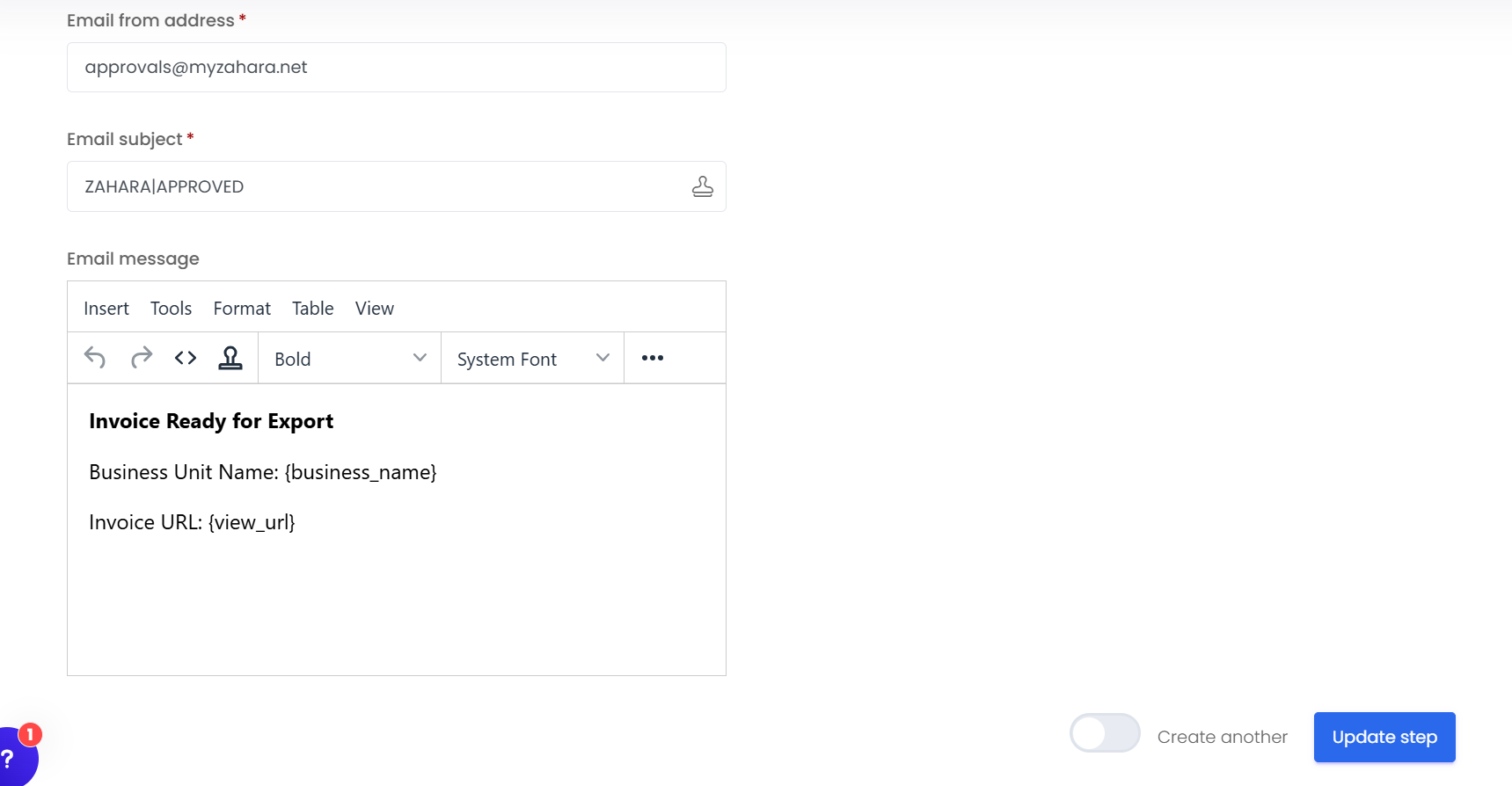
Subject :
ZAHARA|APPROVED
Body :
Invoice Ready for Export

Business Unit Name: {business_name}

Invoice URL: {view_url}
Was this article helpful?
That’s Great!
Thank you for your feedback
Sorry! We couldn't be helpful
Thank you for your feedback
Feedback sent
We appreciate your effort and will try to fix the article