Symptoms
When documents have been captured into FileDirector via scan, Office Link or drag and drop, these can appear as though they are missing from the server - they do not appear in searches.
Cause
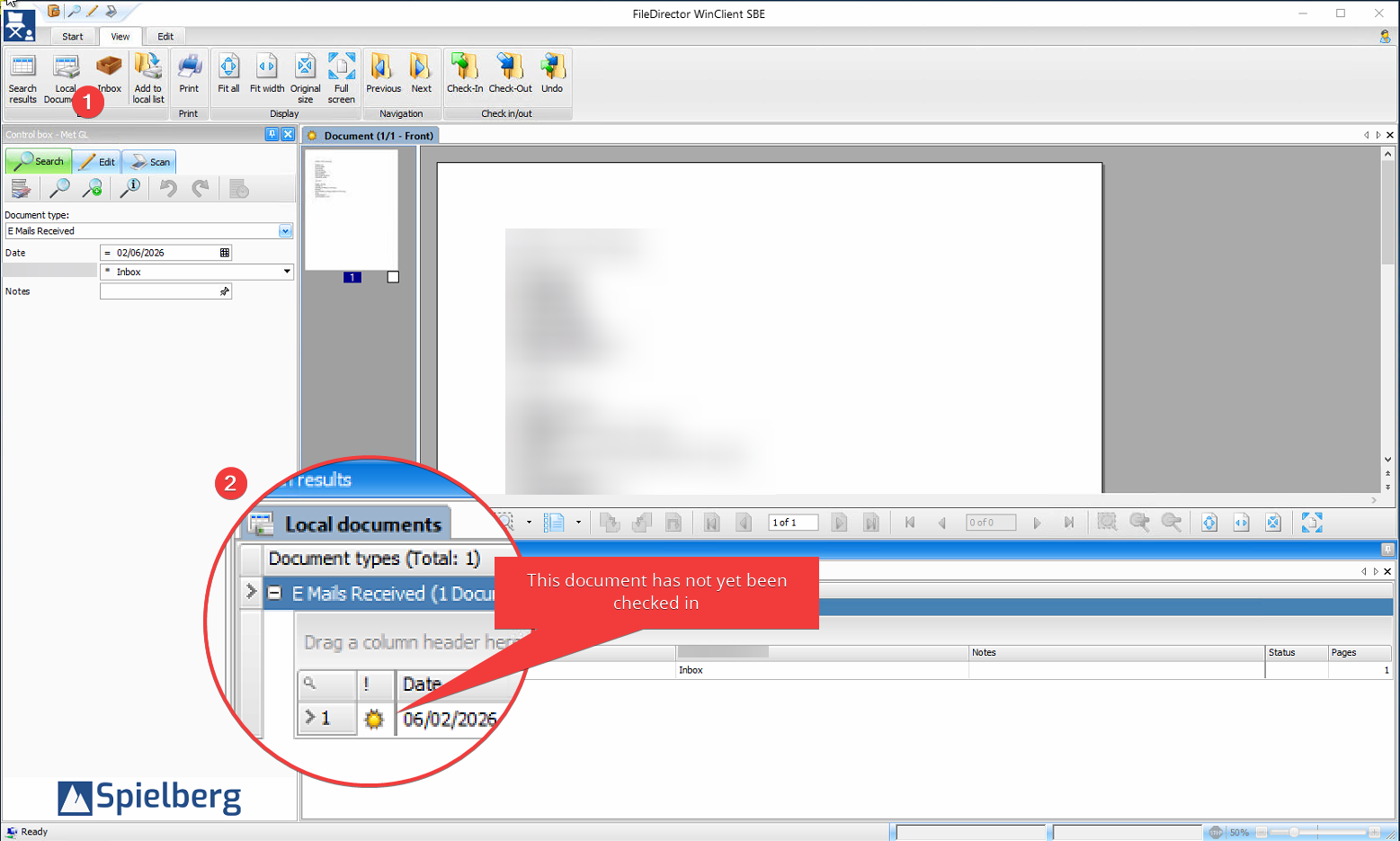
Most often the documents are in 'Local Documents' and have not actually been committed (checked-in) to the server. The example below shows a new document in the Local Documents list.
- Find 'Local Documents' on the 'View' tab
- Inspect the list. A yellow icon indicates a new document.
Resolution
Ensure that the new, or updated, document is checked in.
- Right-click on the document in the list
- Check-in
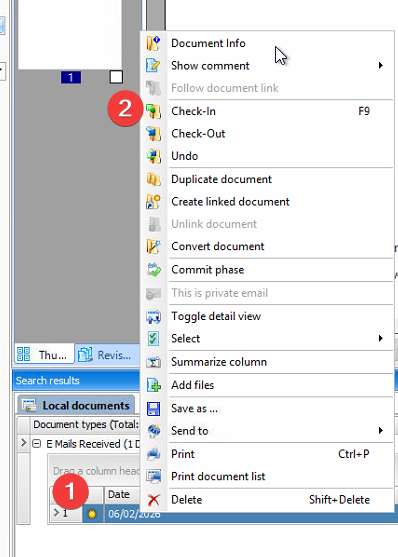
Alternatively you can simply highlight the document and hit 'F9' (check-in) or use the toolbar button.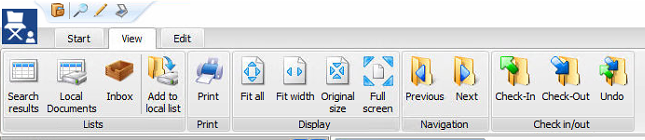
Recommended client settings
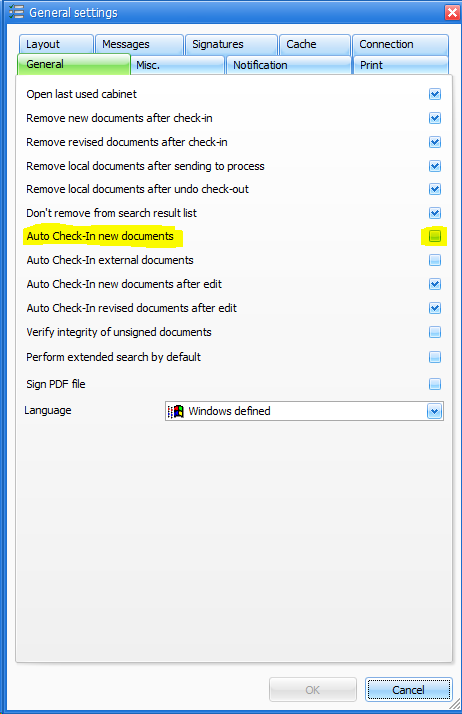
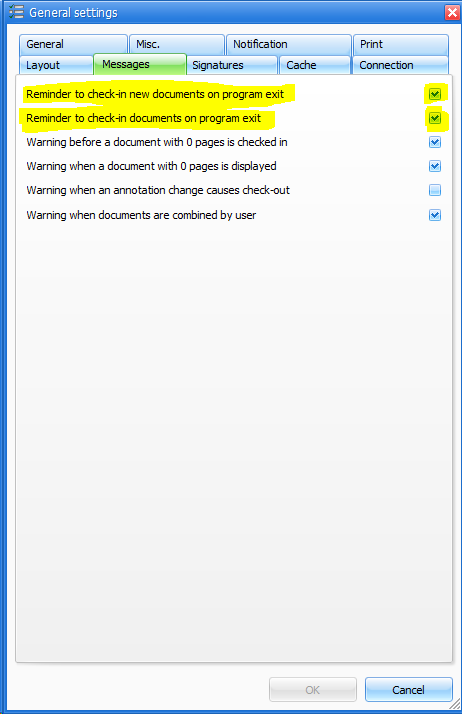
To prevent inadvertently forgetting to check-in documents you can also use the following options to check-in automatically, or to warn when exiting the WinClient application.
Note that it can be advantageous not to auto check-in if you want to edit the document or its metadata before committing to the server.
Was this article helpful?
That’s Great!
Thank you for your feedback
Sorry! We couldn't be helpful
Thank you for your feedback
Feedback sent
We appreciate your effort and will try to fix the article